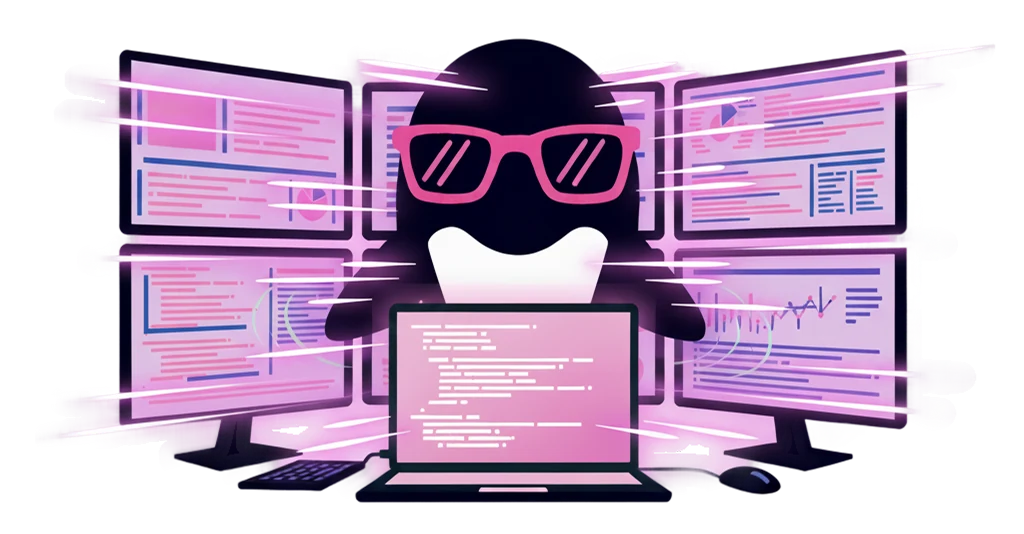
Opening a tool breaks your focus

A quick question, a single image to make. Each time you open a browser or a dedicated tool, log in, and come back. That startup keeps stalling your flow.
Feature / AI Chat
It is a genuinely fast AI chat, and it also generates images with @image, videos with @video, slide images with @slide, and music with @music, right in place. With @deep it even runs deep research with cited sources, and @spread turns research into a spreadsheet. No need to open a separate creative tool. Whatever you make pastes straight into your apps and documents.
IrukaDark handles asking, creating, and pasting directly from a corner of your desktop.
A quick question, a single image to make. Each time you open a browser or a dedicated tool, log in, and come back. That startup keeps stalling your flow.
An image or video made in another tool has to be saved, found, and pasted. Even once it is made, getting it into your working document takes effort.
You want the same reference image, yet every generation means hunting for the file and attaching it again. That repetition makes you hesitate to create casually.
No moving into another tool. Summon chat and generation straight from a corner of your desktop.
FastChat
A genuinely fast AI chat you can summon from anywhere on your desktop without switching screens. Ask what you need without stopping the work in front of you.
@image
Type @image followed by your prompt to generate images. Configure size and parallel count with /image. Generated images paste straight into your apps and documents.
@video
Type @video followed by your prompt to generate videos. Configure size, duration, quality, and count with /video. Create in place without opening a creative tool.
@slide
Type @slide followed by your prompt to generate slide images. Manage templates and settings with /slide. Save reference images and you skip attaching them each time.
@music
Type @music followed by your prompt to generate music, from 30-second clips to full tracks. Pick the model and track count in the tray below the chat. Make background music and jingles in place.
@deep
Type @deep followed by what you want to know and the AI proposes a research plan first. Start it, and it searches and reads on its own, then delivers a report with cited sources.
@spread
Type @spread followed by the list you want and the AI proposes columns and a row count first. Start it, and it gathers rows and fills each cell with cited sources. Save the finished table as CSV or copy it as TSV.
From the moment an idea strikes to building decks and repeat work, it helps as a flow, not a single point.
When an idea hits, run @image or @video right there. No waiting for a tool to launch, just shape it in a corner of your desktop.
Generated images and videos paste into your apps and documents with no save-and-search in between. Making and delivering become one move.
Generate slide images with @slide and adjust templates, count, and style with /slide. Pull together the pieces for your materials in place.
Save reference images as templates and you no longer reattach them on every generation, so you keep creating quickly in the same tone.
IrukaDark's AI chat lets you pick the type with @ commands and the fine settings with / commands.
When you want to generate an image from a prompt. Adjust size and parallel generation count with /image.
When you want to generate a video from a prompt. Adjust size, duration, quality, and count with /video.
When you want to generate slide images from a prompt. Adjust templates, count, and style with /slide.
When you want to generate music from a prompt. Choose between 30-second clips and full tracks, plus the track count, in the tray below the chat.
When you want to dig deep into a topic. Review the research plan before it runs, then receive a report with cited sources.
When you want a comparison table or a list. Adjust columns and row count at the planning stage, then receive a spreadsheet with cited sources.
When you reuse the same reference image. Save it as a template and you skip attaching it on every generation.
Common questions when getting started.
Yes. From a corner of your desktop, use @image, @video, @slide, and @music to generate images, videos, slide images, and music. There is no need to open a separate tool.
Generated images and videos paste straight into your apps and documents. There is no saving and searching for them again.
Yes. Use /image for image size and parallel count, /video for size, duration, quality, and count, and /slide for templates and settings.
Yes. Deep Research via @deep proposes a research plan, then searches and reads the web and writes a report with cited sources. You can revise the plan right from the chat box. When you want a table instead, @spread gathers rows and fills each cell on its own, delivering a spreadsheet with cited sources.