Introduction
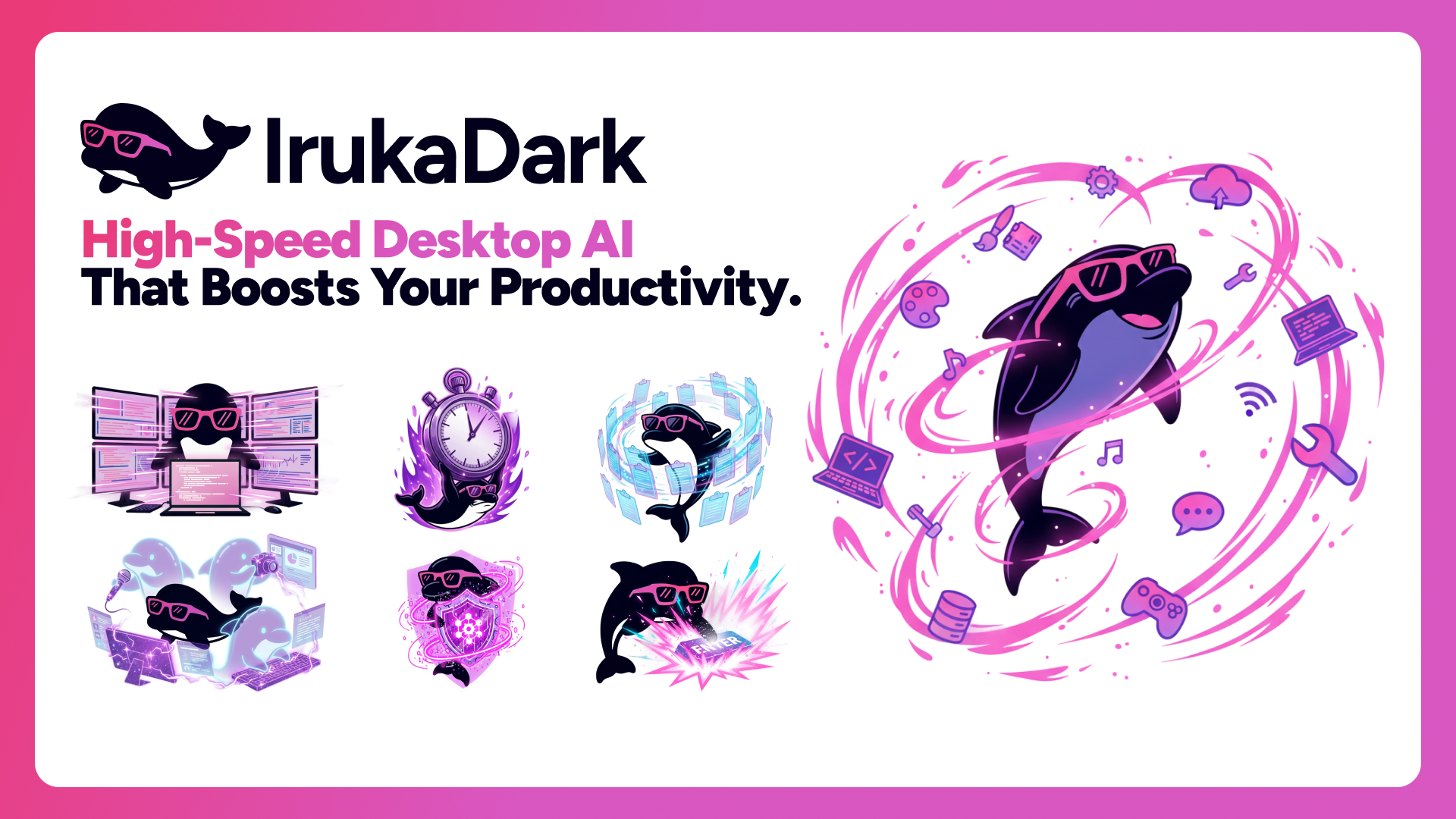
IrukaDark is a high-speed desktop AI that boosts your productivity through keyboard shortcuts. It runs quietly in the background, ready to assist you instantly — no need to switch apps or type prompts.
What is IrukaDark?
IrukaDark is a native desktop application for macOS and Windows that brings powerful AI capabilities right to your fingertips. With a single shortcut, you can:
- Explain anything on screen — Select any region and get an instant AI-powered explanation
- Translate and rewrite text — Rephrase or translate selected text in 16 languages
- Draft from screen: Reads the focused window and drafts a reply right into the input field
- Summarize URLs — Highlight a link and get a quick summary of the page content
- Generate diagrams — Convert selected text into visual diagrams
- Manage your clipboard — Stack copies and paste them in sequence, with snippet support
- Record and summarize meetings — AI meeting notes that works with Zoom, Teams, Google Meet, and more
- Generate images, videos, slides, and music — Create content with
@commands - Deep Research: Plan-first web research that delivers a report with cited sources
- Control windows — Resize and position windows with keyboard shortcuts
- Track time — Built-in timer, stopwatch, and task scheduler
IrukaDark works with any application on your screen — browsers, IDEs, PDF readers, Figma, Notion, Slack, and 30+ other platforms.
Key Shortcuts
Every feature in IrukaDark is accessible through a keyboard shortcut. No mouse-hunting through menus — just press and go.
AI Explanations
| Action | Shortcut |
|---|---|
| Screenshot Explain | Option+S |
| Screenshot Deep Dive | Hold Option+S |
| Quick Explain (selected text) | Option+A |
| Detailed Explain | Hold Option+A |
| Generate Diagram from text | Option+Control+A |
Translation & Rewriting
| Action | Shortcut |
|---|---|
| Translate & Rephrase | Option+R |
| Translate & Replace in-place | Option+Shift+R |
| Rewrite with improved clarity | Option+W |
Draft from Screen
| Action | Shortcut |
|---|---|
| Draft from Screen | Option+D |
URL Analysis
| Action | Shortcut |
|---|---|
| URL Quick Summary | Option+Q |
| URL Deep Summary | Hold Option+Q |
Utilities
| Action | Shortcut |
|---|---|
| Toggle Main Window | Option+Space |
| Clipboard History Popup | Cmd+Shift+V |
| Snippet Popup | Option+Shift+V |
| Toggle Meeting Notes | Option+M |
| Move Popup to Cursor | Option+Z |
| Reset Popup Position | Option+Shift+Z |
Window Control
| Action | Shortcut |
|---|---|
| Half Screen (left/right/top/bottom) | Ctrl+Option+←/→/↑/↓ |
| Quarter Screen (top-left/top-right/bottom-left/bottom-right) | Ctrl+Option+U/I/J/K |
| Third Screen (left/center/right) | Ctrl+Option+D/F/G |
| Two-thirds Screen (left/right) | Ctrl+Option+E/T |
| Maximize | Ctrl+Option+Return |
| Center | Ctrl+Option+C |
| Move to Next/Previous Monitor | Ctrl+Option+N/P |
AI That Sees Your Screen
Unlike chat-based AI tools, IrukaDark analyzes what you're looking at. It works with dashboards, code, charts, PDFs, and any visual content on your screen.
Privacy-First
IrukaDark only sends the content you explicitly select or capture. It does not monitor your screen continuously or store your data. All communication happens over HTTPS. Your data is never used for AI training.
Free to Use
IrukaDark is free with all features included and a monthly credit allowance. For organizations, the Team plan adds cloud-shared meeting notes, usage analytics, shared credit pools, and role-based member management.